Google Ads Audit in Claude: BlueAlpha auto-optimize Tutorial
Audit your Google Ads account in one Claude conversation. Six-phase scoring, underspend diagnosis, budget reallocation, and creative fatigue detection.
TL;DR — auto-optimize is the BlueAlpha Google Ads Plugin skill that runs a complete weekly or bi-weekly Google Ads optimization cycle in Claude. It audits campaign structure, diagnoses why campaigns are underspending, recommends budget moves capped at ±30%, reviews every Google recommendation with a critical eye, and finishes with a creative health check. You hand it a customer ID; it hands back a scorecard, a list of fixes, and flags the safe ones for immediate action. This is the weekly pulse of what BlueAlpha calls the Decision Engine — the system that turns every signal in your ad account into a real decision. The entire flow takes one conversation.
This is the most-used skill in the BlueAlpha Marketing Plugin, and it's the best place to start if you've never run one of these skills before. The article walks through what auto-optimize does, how to invoke it, the outputs you'll see, and the gotchas to watch for.
All ten Google Ads skills in the BlueAlpha Marketing Plugin
Here's every skill in the plugin at a glance — this one-liner list appears at the top of every article in the series so you always know what else is available.
auto-optimize— Runs a full optimization cycle on a Google Ads account: structural audit, underspend diagnosis, budget reallocation, recommendations review, and creative health check.full-monty— Runs every skill in sequence for a comprehensive top-to-bottom audit plus a strategic deployment plan for the next quarter.audience-intelligence— Analyzes audience performance across Google Ads and recommends bid modifiers, new segments, exclusions, and observation-to-targeting moves.brand-refresh-pipeline— Detects creative fatigue, audits brand voice, and generates fresh responsive search ad copy for any campaign.competitive-conquest— Researches competitors, identifies messaging gaps, and designs conquest campaign specs that target competitor brand terms.competitive-counterpunch— Detects when competitors gain auction share on your brand and plans a proportional defensive response.content-to-campaign— Turns any piece of content (blog, case study, webinar, comparison page) into a paid campaign complete with keywords and ad copy.geo-expansion-scout— Identifies new geographic markets worth entering by analyzing geo performance, keyword volume, and competitive density.incrementality-test-runner— Designs and monitors geo-based incrementality tests in Google Ads with integrity checks and lift analysis.seo-paid-bridge— Finds where organic and paid search overlap or leave gaps, then specs complementary paid campaigns that maximize total search click share.
This article is part of the full series.
Why use Claude for Google Ads management?
Most "AI for ads" tools are dashboards with a chatbot bolted on. They can answer questions about your data, but they can't do anything about what they find. Claude with the BlueAlpha Marketing Plugin is different — it's a performance marketing agent that reads your Google Ads account, makes decisions grounded in real data, and produces deployment-ready recommendations you can act on immediately. The same AI that interprets a 466% CPA spike as creative fatigue can also recommend pausing the ad, draft replacements, and propose budget reallocation — all in one session.
This matters because performance marketing is overwhelmingly operational. The insight is rarely the bottleneck; the execution is. A human PPC manager spends 80% of their time on repetitive audit-and-fix work that doesn't require strategic judgment. Claude handles that layer — structural audits, underspend diagnosis, recommendation triage, fatigue detection — so you spend your time on the 20% that actually requires a human brain: positioning, creative direction, client strategy, and budget negotiations.
The same principle applies at the measurement layer. When BlueAlpha tested Cann's AppLovin spend, the platform reported a 4.77x ROAS. A geo holdout test proved the actual incremental lift was zero — $480K per year in spend that looked productive but wasn't. The insight was there in the data; nobody had executed the test to surface it.
The plugin works through the Model Context Protocol (MCP), which gives Claude direct, authenticated access to the Google Ads API. That means live data, real diagnostics, and no copy-pasting between tabs. The next section explains exactly how that connection works.
How does Claude connect to your Google Ads account?
The BlueAlpha Marketing Plugin uses the Model Context Protocol (MCP) — an open standard that lets Claude talk directly to external tools and APIs. When you install the plugin, it registers a set of Google Ads tools (audit, diagnose, reallocate, recommend, detect fatigue, etc.) that Claude can call during a conversation. Every tool call goes through your authenticated MCC, scoped to the customer ID you specify.
What this means in practice: Claude isn't scraping a dashboard or reading a static export. It's making live API calls to Google Ads, pulling real-time campaign data, and producing actionable recommendations. The MCP connection is what makes the Analyze → Decide → Act loop possible in a single conversation rather than across three different tools.
For setup instructions (installing the plugin, authenticating your MCC, and connecting your first account), see The BlueAlpha Google Ads Marketing Plugin for Claude.
What the auto-optimize skill does
The skill runs in six phases, each of which maps to a job a senior paid search manager would do by hand during a weekly review.
Structural audit. Every campaign gets scored 0–110 across six dimensions: structure, bid strategy, budget health, targeting, extensions, and performance. Anything under 60 is flagged as "Fix." Scores of 60–89 go into "Tune." Scores of 90+ go into "Scale."
Underspend diagnosis. A five-layer diagnostic walks through why campaigns aren't spending their full budgets. Layer 1 is hard issues (disapproved ads, paused campaigns, expired end dates). Layer 2 is reach restrictions. Layer 3 is bidding. Layer 4 is quality. Layer 5 is the catch-all: learning periods, seasonality, conversion lag.
Budget reallocation. The skill runs
analyze_budget_reallocationagainst a 30-day window and proposes moves of up to ±30% per campaign. If an MMM is connected, it cross-references marginal ROI and saturation curves so platform attribution doesn't overweight last-touch.Google recommendations review. The skill pulls every Google Ads recommendation and classifies it as "Safe," "Caution," or "Decline." It does not blindly accept Google's suggestions — the whole point is to keep your optimization score honest without sacrificing account quality.
Creative health check.
detect_creative_fatigueandanalyze_creativesrun here to surface tired ads. Anything critical gets flagged for a handoff to thebrand-refresh-pipelineskill.Optimization plan and report. Everything rolls up into a prioritized action plan tagged P0 (fix now), P1 (fix this week), Safe (monitor), or Hold (revisit next cycle).
Every phase follows the same loop: Analyze the data, Decide what to do, Act on it — with deployment-ready specs for every fix, prioritized by impact.
Risk tolerance: what each level means
Risk tolerance controls how aggressively the skill acts on its own findings. You choose it at the start of every run.
Level | Budget shifts | Auto-fixes | Best for |
|---|---|---|---|
Conservative | Up to ±10% | None — report only | New clients, accounts you don't own, first-time audits |
Moderate | Up to ±20% | Recommends with confirmation | Weekly maintenance on stable accounts |
Aggressive | Up to ±30% | Flags low-risk fixes for immediate action (activate paused campaigns, enable search partners, fix disapprovals) | Accounts you manage directly and know well |
In the tutorial video, Aggressive is selected — which means the skill activates the paused Brand campaign and enables search partners without waiting for manual approval. That's the "Act" leg of the Decision Engine in action.
When to use it
Use auto-optimize for any of the following:
Weekly or bi-weekly maintenance. For accounts spending $5K+ per month, run it every Monday. For $1K–$5K accounts, every other Monday. For smaller accounts, once a month.
Onboarding a new account. Running the skill on day one gives you a baseline scorecard you can show the client and a starting action list.
Diagnosing a silent performance drop. When conversions are down but nothing obvious changed, underspend diagnosis is usually the fastest way to find the cause.
Before a budget conversation with the client. The structural scorecard gives you defensible, data-backed talking points.
Skip it if the account has been live for less than two weeks — there isn't enough data to score structure or calibrate budget moves. Run the skill once the account has accumulated at least 30 days of delivery.
What you'll need before you start
Google Ads customer ID — the 10-digit ID of the account to audit. Required. If you don't know it, ask Claude to run
list_accessible_customersfirst.Scope — full account, a specific campaign, or a specific channel type. Optional. Defaults to the full account.
Risk tolerance — conservative, moderate, or aggressive. Optional. Defaults to moderate.
MMM model ID — if you have a Meridian model connected through the
bluealpha-mmmMCP. Optional but highly recommended for budget validation.Previous cycle report — if this is a recurring run, the last report gives the skill trend data to compare against.
Budget constraints — any hard caps on daily spend or campaign-level budgets.
Step-by-step: running auto-optimize in Claude
Watch the full walkthrough first, then use the guide below to replicate it on your own account.
1. Invoke the skill
Type the slash command followed by your customer ID:
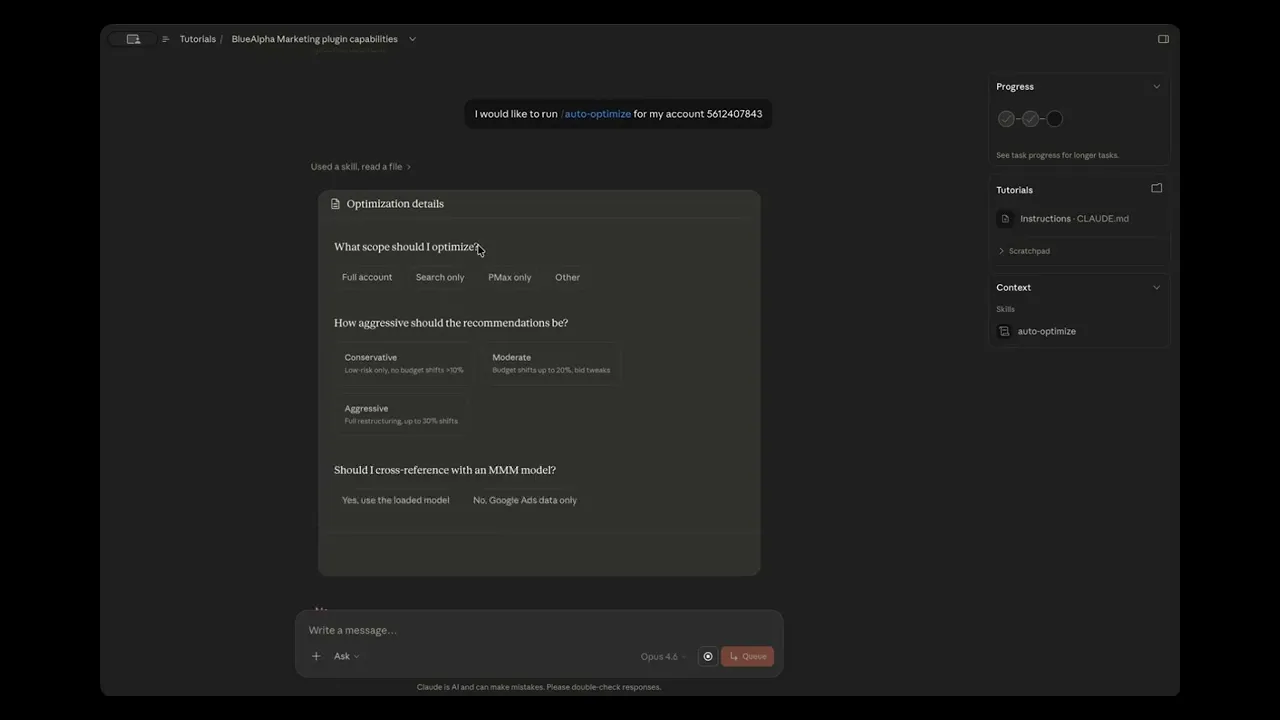
"I would like to run /auto-optimize for my account 5612407843"
Claude loads the skill and presents an interactive Optimization Details widget with three settings:
Scope — Full account, specific campaigns, or a channel type. Click to select.
Risk tolerance — Conservative, Moderate, or Aggressive. Click to select.
MMM — Yes (with model ID) or No (Google Ads data only). Click to select.
In the video, the config is: Full account · Aggressive · No MMM. Once you confirm, the skill runs all six phases automatically — no need to prompt between phases. A progress sidebar tracks each phase as it completes.
You can also kick it off with a natural-language prompt if you prefer:
"Run auto-optimize on 561-240-7843, aggressive risk, last 30 days, no MMM."
Both approaches produce the same result.
2. Read the structural scorecard (Phase 1)
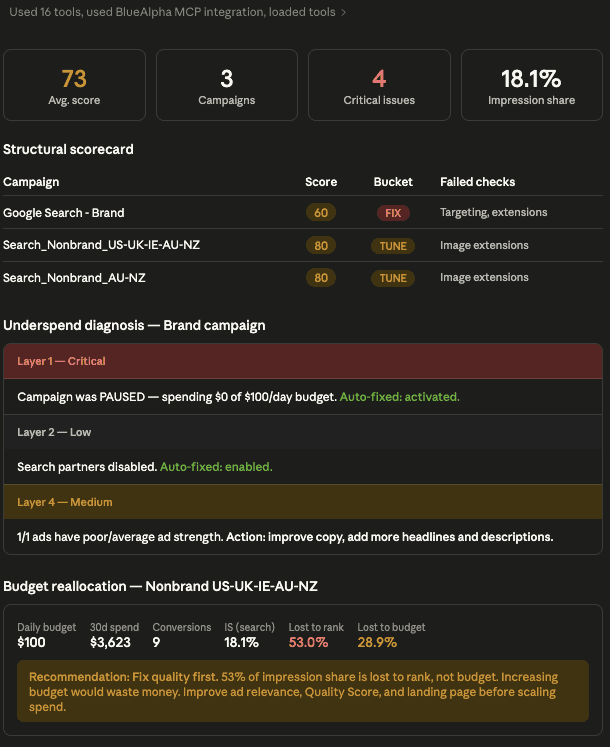
Phase 1 produces a campaign-by-campaign scorecard rendered as a color-coded table with KPI summary cards at the top. In the video, the headline numbers are:
73 average structural score across the account
3 campaigns audited (Brand, Nonbrand Search, Nonbrand Display)
4 critical issues requiring immediate attention
18.1% impression share — meaning the account is missing over 80% of eligible impressions
The scorecard table shows Brand at 60/110 (Fix) and both Nonbrand campaigns at 80/110 (Tune). Don't skip this output. A campaign scoring under 60 doesn't need bid adjustments — it needs surgery. Pushing more budget into a broken structure just wastes more money.
The skill ranks findings by impact. In this account: missing ad extensions, wrong location targeting (Presence or Interest instead of Presence only), and the Brand campaign sitting paused with zero spend.
3. Underspend diagnosis (Phase 2)
Phase 2 is the highest-ROI part of the skill for most accounts. The five-layer output lists every blocker in order of severity:
Layer 1 findings are almost always worth fixing immediately. In the video, the Brand campaign is paused — $100/day budget, $0 actual spend, 100% underspend. That's a Layer 1 hard issue. At Aggressive risk tolerance, the skill activates the campaign automatically rather than just flagging it.
Layer 2 findings often require a judgment call. A campaign that's losing impression share to ad scheduling might be intentional. At Aggressive, the skill enables search partners automatically; at Moderate or Conservative, it asks first.
Layer 3 findings usually point at aggressive tCPA or tROAS targets. Loosen the target, give it a week, see if it recovers.
Layer 4 findings (ad strength, Quality Score, landing page) are the slowest to fix but compound the most.
The underspend output includes auto-fix annotations showing which issues the skill has already resolved versus which ones require your input.
4. Budget reallocation (Phase 3)
Phase 3 is where the MMM cross-check earns its keep. Google Ads might say Campaign A has a 5x ROAS and Campaign B has 2x — which looks like a slam dunk to move budget to A. But if the MMM shows Campaign A's saturation curve is flat and Campaign B's is steep, the platform is lying to you. Trust the MMM for direction, use Google Ads for tactical execution.
Budget changes are capped at ±30% per cycle for a reason: smaller moves are easier to attribute when you measure the impact next week.
Without an MMM connected (as in the video), the skill uses Google Ads data alone and notes the platform-attribution caveat in the output. For accounts under ~$10K/month, this is usually fine — the MMM adds the most signal on mature, multi-channel accounts.
5. Google recommendations review (Phase 4)
Phase 4 is where most teams go wrong in a manual audit: they accept everything Google suggests to boost their optimization score, and end up broad-matching keywords they never intended. auto-optimize classifies each recommendation:
Safe: keyword match type expansions on proven terms, RSA asset additions, removing redundant keywords, fixing disapprovals.
Caution: switching to tCPA/tROAS (only with 15+ conversions in the last 30 days), budget increases, new keyword suggestions.
Decline: "upgrade to broad match" across the account, removing all negatives, switching to Performance Max, anything auto-apply.
In the video, the account has four active recommendations. The skill classifies one as Safe, one as Caution, and two as Decline — then explains the reasoning for each. You make the final call on Caution items. The skill never accepts a Caution or Decline recommendation on its own, regardless of risk tolerance.
6. Creative health check (Phase 5)
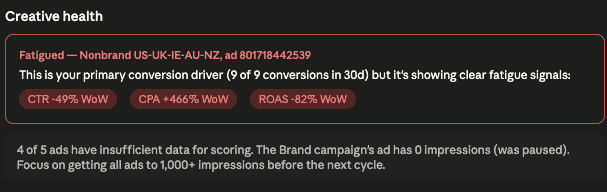
Phase 5 runs detect_creative_fatigue and analyze_creatives in parallel. In the video, the fatigue detector surfaces a significant finding: one ad with a +466% CPA spike week-over-week, CTR down 49%, and ROAS down 82%. With 9 conversions in the window, this is a more statistically meaningful signal than a two-conversion swing would be.
The skill evaluates the severity and, depending on the data volume behind the signal, recommends either a selective pause and creative refresh (handoff to brand-refresh-pipeline) or a watch-and-wait. Context matters — the same CPA spike means different things on an ad with 1,000 impressions versus one with 50,000.
7. The prioritized action plan (Phase 6)
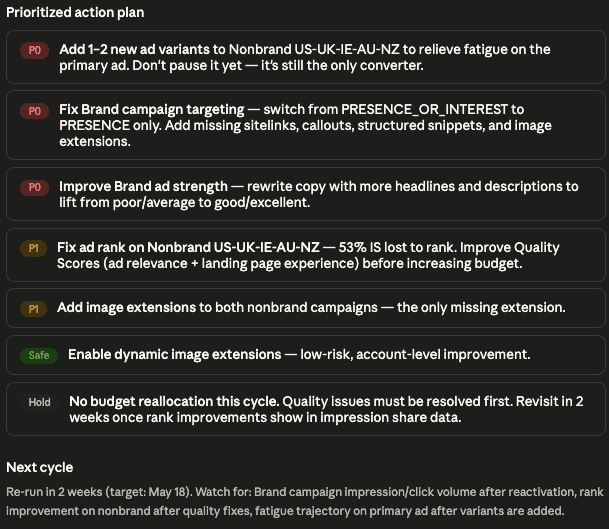
Phase 6 compiles everything from the first five phases into a single prioritized action plan. Instead of a flat list, every item gets a priority tag:
P0 — Fix now. Critical blockers the skill has already fixed (at Aggressive) or needs you to fix immediately. Examples: activate paused campaigns, fix disapproved ads, correct location targeting.
P1 — Fix this week. High-impact changes that require your judgment. Examples: strengthen ad copy, improve Quality Score drivers, address creative fatigue.
Safe — Monitor. Items that are working but worth watching. Examples: campaigns in Tune status, bid strategies that are calibrating properly.
Hold — Revisit next cycle. Items that need more data before acting. Examples: structural overhauls, new bid strategy switches, anything in a learning period.
The action plan also includes auto-fix annotations showing what the skill already executed during the run. In the video, Brand activation and search partner enablement are marked as completed — the skill didn't just recommend those changes, it made them.
This is the complete Analyze → Decide → Act loop. The agent analyzed the account, produced decisions with the data behind them, and flagged the safe ones for immediate action. Everything else is ready for your approval.
Prompt reference
Kick-off prompts — copy one, swap in your customer ID:
"I would like to run /auto-optimize for my account 5612407843"
"Run auto-optimize on 123-456-7890 — moderate risk, last 30 days."
"Run auto-optimize on 123-456-7890 — aggressive risk, full account, no MMM."
"Run auto-optimize on my account. Only look at the brand campaigns this time."
"Run auto-optimize on 123-456-7890, pull the last 60 days, and compare the scorecard to last cycle's report in this thread."
"Run auto-optimize on 123-456-7890 with MMM cross-check against model
client_v12. I care most about the budget reallocation phase."
Follow-up prompts — use these after the skill finishes to dig deeper:
"What are the top 3 issues across all campaigns?"
"Give me a CEO-ready executive summary of what we've found."
"Explain the budget reallocation reasoning in more detail."
"Why did you decline that recommendation?"
"Based on these results, what other skills should I run next?"
"Package this into a client-ready report."
Gotchas and tips
Don't run
auto-optimizeduring an active learning period. After any bid strategy change, Google needs 7–14 days to recalibrate. Running the skill in that window produces misleading data.Start with Moderate, graduate to Aggressive. Use Moderate on your first run to see what the skill would do. Once you trust the judgment, switch to Aggressive for the most actionable output.
Don't optimize everything at once. Each change needs 1–2 weeks to show its effect. If you shift budget and change bids and swap creative in one cycle, you'll never know what worked. Pick the highest-impact change and let it breathe.
A 70% Google optimization score can beat a 95%. Google rewards you for accepting every recommendation, but many of those recommendations serve Google, not you. A well-structured account with a lower automation score will outperform a blindly-automated one every time.
The MMM cross-check matters most for mature accounts. New or small accounts usually don't have enough history for the MMM to add much signal. The Google Ads data is fine on its own until you hit ~$10K/month.
FAQ
How long does auto-optimize take to run?
A typical account takes 5–7 minutes. All six phases run automatically once you confirm the config — no prompting between phases required.
Does the skill push changes to Google Ads automatically?
Not currently. The skill produces prioritized recommendations and deployment-ready specs at all risk tolerance levels. You execute the changes in Google Ads Editor or the Ads UI. On-platform execution is on the roadmap. (Note: the video walkthrough above was recorded with write functions enabled during an early access period.)
Can I run auto-optimize on only some campaigns?
Yes. Set the scope in the Optimization Details widget or pass it in your prompt. Example: "Run auto-optimize on 123-456-7890 for non-brand search campaigns only."
Does it work without an MMM connected?
Yes. The MMM is an optional enhancement. Without it, the skill uses Google Ads data alone, with a caveat in the report about platform attribution.
How often should I run auto-optimize?
Weekly for $5K+/month accounts. Bi-weekly for $1K–$5K. Monthly for smaller accounts. Don't run it more than once a week — changes need time to show impact.
What happens if a campaign fails Phase 1 with a very low score?
The skill will recommend restructuring rather than tuning. For large overhauls it hands off to seo-paid-bridge, competitive-conquest, or other downstream skills.
What's the difference between the slash command and a natural-language prompt?
Both work. The slash command (/auto-optimize) loads the interactive widget for point-and-click config. A natural-language prompt skips the widget and uses whatever settings you specify in the text. Same skill, same output either way.
What does a Google Ads audit with Claude actually check?
The auto-optimize skill checks six dimensions per campaign: structure (naming, organization, match types), bid strategy (alignment with goals, learning status), budget health (pacing, underspend, cap utilization), targeting (geo settings, audience signals, device modifiers), extensions (sitelinks, callouts, structured snippets), and performance (ROAS, CPA, conversion trends). Each campaign scores 0 to 110 across all six. Anything under 60 is flagged for restructuring, 60 to 89 for tuning, 90 and above for scaling. On top of the structural audit, the skill runs a five-layer underspend diagnosis, a budget reallocation analysis, a critical review of Google's own recommendations, and a creative fatigue check.
Related skills
If the creative health check flags critical fatigue → run brand-refresh-pipeline.
If the structural audit reveals the account needs a full rebuild → run full-monty.
If the audit surfaces audience-level waste → run audience-intelligence.
Your next step
Install the BlueAlpha Marketing Plugin, connect your Google Ads account, and run this prompt on a sandbox or low-risk account first:
"I would like to run /auto-optimize for my account
<your customer ID>"
You'll have a full scorecard and a prioritized action plan in under seven minutes. To see how auto-optimize fits into the full Decision Engine and the nine other skills, start with the plugin overview.
If you want a senior growth partner to run the Decision Engine for you, book a demo. Or start with a free Marketing Health Diagnostic to see where your account stands before running the full audit.

